Bates Number Labels: Physical Document Stamping & Printing Guide
While digital Bates numbering dominates modern litigation, physical documents still require proper identification. Learn how to create, print, and apply Bates number labels for paper documents using professional labeling systems.
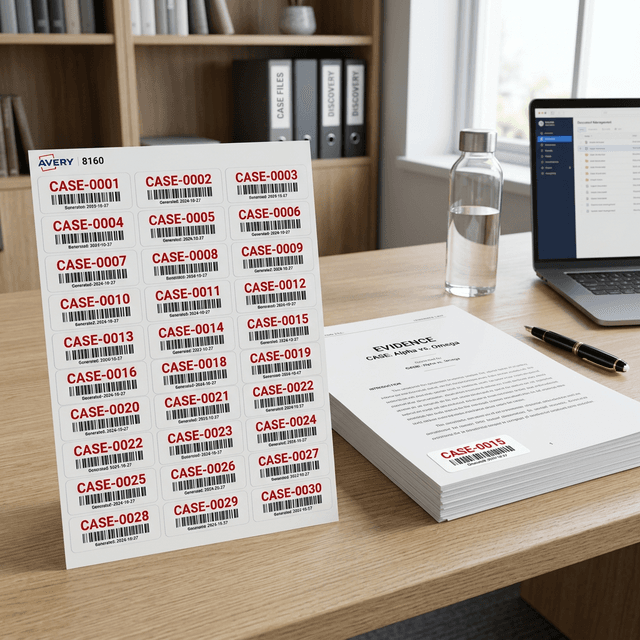
Understanding Bates Number Labels
Bates number labels are adhesive labels printed with sequential identification numbers that are physically applied to paper documents. They serve the same purpose as digital Bates stamps but for physical documents that haven't been scanned or when original paper documents must be marked.
Common scenarios requiring physical Bates labels include:
- Original documents that cannot be scanned (oversized blueprints, bound volumes)
- Documents requiring both physical and digital identification
- Exhibits for trial that must be marked on the original
- Archive materials where physical marking is required
- Documents produced in paper format per agreement or court order
Modern Approach
Most litigation now uses digital Bates numbering for efficiency and searchability. Physical labels are typically reserved for special circumstances or when working with original documents that must remain in paper form.
Label Types and Formats
Avery Label Templates
Avery is the industry standard for label templates. Their numbering system is widely supported by word processors and label printing software.
Popular Avery templates for Bates labels:
- Avery 5160: 1" x 2-5/8" (30 labels per sheet) - Most common for Bates numbering
- Avery 5161: 1" x 4" (20 labels per sheet) - Larger format for more information
- Avery 5162: 1-1/3" x 4" (14 labels per sheet) - Extra height for multi-line labels
- Avery 5163: 2" x 4" (10 labels per sheet) - Large format for prominent marking
- Avery 5167: 1/2" x 1-3/4" (80 labels per sheet) - Small format for minimal space
Avery 5160 is the most popular choice because it provides good readability while fitting comfortably in document corners without obscuring content.
Label Materials
Choose label materials based on your document handling requirements:
Standard paper labels:
- Most economical option
- Suitable for documents stored in controlled environments
- May yellow or deteriorate over long-term storage
- Not water-resistant
Archival-quality labels:
- Acid-free materials for long-term preservation
- Won't damage or discolor documents over time
- Essential for historical documents or permanent archives
- More expensive but necessary for valuable originals
Waterproof/durable labels:
- Polyester or vinyl materials
- Resistant to moisture, oils, and handling
- Suitable for documents in harsh environments
- Required for outdoor or industrial applications
Adhesive Types
Label adhesive selection affects both application and document preservation:
Permanent adhesive:
- Creates strong, lasting bond
- Difficult or impossible to remove without damage
- Best for documents that will remain permanently marked
- Standard choice for litigation productions
Removable adhesive:
- Can be removed without residue or damage
- Useful for temporary marking or exhibits
- May not withstand heavy handling
- Good for documents that may need re-marking
Repositionable adhesive:
- Allows adjustment after initial placement
- Useful when precise positioning is critical
- Less secure than permanent adhesive
- Not recommended for long-term applications
Creating and Printing Bates Labels
Software Options
Several software solutions can generate sequential Bates number labels:
Microsoft Word with Mail Merge:
- Built-in label templates for all Avery formats
- Mail merge feature generates sequential numbers
- Free if you have Microsoft Office
- Requires some setup but very flexible
Avery Design & Print:
- Free software from Avery
- Simplified interface for label creation
- Sequential numbering built-in
- Limited customization compared to Word
Specialized legal software:
- Practice management systems often include label printing
- Integrated with case management
- May support barcode generation
- Usually requires subscription
Dedicated label software:
- Professional label design applications
- Advanced formatting and customization
- Batch processing capabilities
- One-time purchase or subscription
Creating Labels in Microsoft Word
Step-by-step process:
1. Set up the label template:
- Go to Mailings → Labels
- Click Options and select your Avery template (e.g., 5160)
- Choose "New Document" to create a full sheet of labels
2. Create the data source:
- Create an Excel spreadsheet with sequential Bates numbers
- Use formula: ="BATES"&TEXT(ROW(),"000000")
- This generates BATES000001, BATES000002, etc.
- Create as many rows as you need labels
3. Set up mail merge:
- In Word, go to Mailings → Start Mail Merge → Labels
- Select your label template
- Click "Select Recipients" → Use Existing List
- Choose your Excel file with Bates numbers
4. Insert merge field:
- Click "Insert Merge Field" and select your Bates number column
- Format the text (font, size, alignment)
- Click "Update Labels" to apply to all labels
5. Preview and print:
- Click "Preview Results" to see your labels
- Verify sequential numbering is correct
- Print a test sheet on plain paper first
- Once verified, print on label sheets
Printer Calibration
Always print a test sheet on plain paper and hold it up to a label sheet against light to verify alignment. Printer calibration varies, and misalignment will waste expensive label sheets.
Label Design Best Practices
Font selection:
- Use clear, readable fonts (Arial, Helvetica, Courier)
- Avoid decorative or script fonts
- Size: 10-12pt for standard labels, 8-10pt for small labels
- Bold text improves readability
Layout considerations:
- Center text horizontally and vertically on label
- Leave small margins to prevent text cutoff
- Use consistent formatting across all labels
- Consider adding prefix or case identifier
Information to include:
- Bates number (required)
- Case identifier or prefix (recommended)
- Date of labeling (optional)
- Confidentiality designation (if applicable)
Applying Labels to Documents
Label Placement
Consistent label placement is essential for professional appearance and easy reference:
Standard positions:
- Bottom right corner: Most common placement, doesn't obscure headers
- Top right corner: Alternative when bottom is problematic
- Bottom center: Used when corners contain important information
- Right margin: Vertical placement for bound documents
Choose one position and use it consistently throughout your production. Inconsistent placement looks unprofessional and makes documents harder to reference.
Application Technique
Proper label application:
- Prepare workspace: Clean, flat surface with good lighting
- Organize documents: Arrange in order before labeling
- Peel carefully: Remove label from backing without bending
- Position precisely: Align label before making contact
- Apply firmly: Press from center outward to avoid bubbles
- Verify number: Check that correct label is on correct document
Quality Control
Implement quality control measures to prevent labeling errors:
- Pre-labeling check: Verify document order before starting
- Sequential verification: Check every 10th or 20th label for correct sequence
- Placement consistency: Use a ruler or template to ensure uniform positioning
- Adhesion check: Ensure labels are firmly attached
- Final review: Spot-check completed documents for errors
Handling Special Documents
Oversized documents:
- Use larger labels (Avery 5163 or 5162)
- Place in consistent corner or margin
- Consider using multiple labels if document will be folded
Bound volumes:
- Label each page individually if pages will be separated
- Label spine and cover if volume stays intact
- Use vertical labels on right margin if binding prevents corner placement
Fragile or valuable documents:
- Use archival-quality, acid-free labels
- Consider removable adhesive for irreplaceable originals
- Consult with archivists for historical documents
- Document label placement with photographs
Multi-page documents:
- Label each page with sequential numbers
- Maintain consistent placement across all pages
- Consider adding page count (e.g., "Page 1 of 5")
Hybrid Digital-Physical Workflows
Coordinating Digital and Physical Numbering
Many productions require both digital and physical Bates numbering:
Approach 1 - Same numbers:
- Apply physical labels to documents
- Scan labeled documents
- Digital files show physical labels in scans
- Ensures perfect correspondence between physical and digital
Approach 2 - Separate number ranges:
- Physical documents: BATES-P-000001
- Digital documents: BATES-D-000001
- Maintain separate tracking for each format
- Useful when some documents exist only in one format
Scanning Labeled Documents
If you'll scan documents after labeling:
- Ensure labels are firmly attached before scanning
- Use high-resolution scanning (300 DPI minimum) to capture label text
- Verify labels are readable in scanned images
- Consider label placement that won't interfere with OCR
Modern Best Practice
For most litigation, scan documents first and apply digital Bates numbers using tools like BatesFast. This is faster, more accurate, and creates searchable documents. Reserve physical labels for originals that must remain in paper form or special circumstances.
Cost Considerations
Label Costs
Typical pricing (as of 2026):
- Standard Avery 5160: $15-25 per 100 sheets (3,000 labels)
- Archival-quality labels: $30-50 per 100 sheets
- Waterproof/durable labels: $40-70 per 100 sheets
- Generic alternatives: $10-15 per 100 sheets (quality varies)
Cost per document: For a 10-page document, labels cost approximately $0.10-0.25 using standard Avery labels.
Time Investment
Physical labeling is labor-intensive:
- Label creation and printing: 30-60 minutes per 1,000 labels
- Application: 2-5 minutes per document (varies by page count)
- Quality control: 10-20% additional time
For a 500-page production (100 documents averaging 5 pages), expect 4-8 hours of labor for physical labeling versus 30-60 minutes for digital Bates numbering.
When to Use Physical Labels vs Digital Numbering
Use Physical Labels When:
- ✓ Documents cannot be scanned (oversized, bound volumes)
- ✓ Original documents must be marked per court order
- ✓ Physical exhibits are required for trial
- ✓ Archival requirements mandate physical marking
- ✓ Documents will remain in paper format permanently
Use Digital Numbering When:
- ✓ Documents can be scanned or are already digital
- ✓ Searchability is important
- ✓ Large document volumes need processing
- ✓ Electronic production is acceptable
- ✓ Time and cost efficiency are priorities
Frequently Asked Questions
What's the best Avery template for Bates labels?
Avery 5160 (1" x 2-5/8", 30 per sheet) is the most popular choice. It provides good readability while being small enough to fit in document corners without obscuring content. For larger documents or when more information is needed, consider Avery 5161 or 5162.
Can I use generic labels instead of Avery brand?
Yes, many manufacturers make labels compatible with Avery templates. However, quality varies significantly. Generic labels may have alignment issues, inferior adhesive, or poor print quality. For important legal documents, name-brand labels are worth the modest additional cost.
How do I ensure labels align correctly when printing?
Always print a test sheet on plain paper first. Hold it up to a label sheet against light to check alignment. If misaligned, adjust your printer's page setup or margins. Some printers have built-in calibration tools for label printing.
Should I use permanent or removable adhesive?
Use permanent adhesive for litigation productions and documents that will remain permanently marked. Use removable adhesive only for temporary marking, exhibits that may need re-marking, or when working with valuable originals that shouldn't be permanently altered.
Where should I place Bates labels on documents?
Bottom right corner is standard and most common. This placement doesn't obscure headers or important content. Choose one position and use it consistently throughout your entire production for professional appearance.
How do I create sequential numbers in Excel for labels?
Use the formula: ="BATES"&TEXT(ROW(),"000000") in cell A1, then copy down. This creates BATES000001, BATES000002, etc. Adjust the number of zeros for your desired digit count. You can change "BATES" to any prefix you need.
Are physical Bates labels still commonly used?
Physical labels are now used primarily for special circumstances: original documents that can't be scanned, trial exhibits, or when court orders require physical marking. Most modern litigation uses digital Bates numbering for efficiency and searchability.
Can I print Bates labels on a regular inkjet printer?
Yes, both inkjet and laser printers work for label printing. Laser printers generally provide sharper text and faster printing. Ensure your printer can handle label sheets (some have restrictions) and always use labels designed for your printer type.
Conclusion
While digital Bates numbering has become the standard in modern litigation, physical labels remain essential for specific scenarios where paper documents must be marked. Understanding label types, printing techniques, and application methods ensures professional results when physical marking is required.
Success with physical Bates labels requires attention to detail: choosing appropriate label materials, ensuring accurate printing alignment, maintaining consistent placement, and implementing quality control throughout the process. Though more time-consuming than digital numbering, proper physical labeling provides reliable document identification for originals and exhibits.
For most litigation needs, consider a hybrid approach: use digital Bates numbering with tools like BatesFast for efficiency and searchability, reserving physical labels for the specific documents that truly require paper marking. This balanced strategy provides the best of both worlds—modern efficiency with traditional reliability when needed.
Ready for Efficient Digital Bates Numbering?
Skip the time-consuming label printing and application. Use BatesFast for fast, accurate digital Bates numbering with complete security. Start with one free preview run, then $299 one-time purchase.
Try Digital Bates Numbering