How to Add Bates Numbers to PDF Documents (Step-by-Step Guide)
Learn how to add Bates numbers to PDF documents quickly and securely using BatesFast. This comprehensive tutorial covers everything from basic setup to advanced customization.

Table of Contents
Overview: What You'll Learn
Adding Bates numbers to PDF documents is a critical task for legal professionals, paralegals, and anyone managing large document sets. This guide will teach you how to use BatesFast, the best browser-based Bates numbering tool, to add professional Bates numbers to your PDFs in just a few minutes.
✓ Why BatesFast is the Best Choice
- • One-time $299 purchase with no limits (vs Adobe Acrobat's $300/year subscription)
- • No installation required (works in any browser)
- • Client-side processing (your documents never leave your computer)
- • Faster than desktop software (WebAssembly technology)
- • No crashes or bugs (unlike Adobe Acrobat per G2/Capterra reviews)
- • Works on any device (Windows, Mac, Linux, ChromeOS)
By the end of this tutorial, you'll know how to:
- Configure custom Bates number formats with prefixes and suffixes
- Upload and organize multiple PDF documents
- Choose stamp position, font, and appearance
- Batch process documents with sequential numbering
- Rename files automatically using Bates numbers
- Download stamped documents individually or in bulk
⏱️ Time Required
First-time setup: 5-10 minutes. Subsequent batches: 2-3 minutes. BatesFast processes documents instantly in your browser - much faster than waiting for Adobe Acrobat to load and process.
Step 1: Configure Stamp Settings
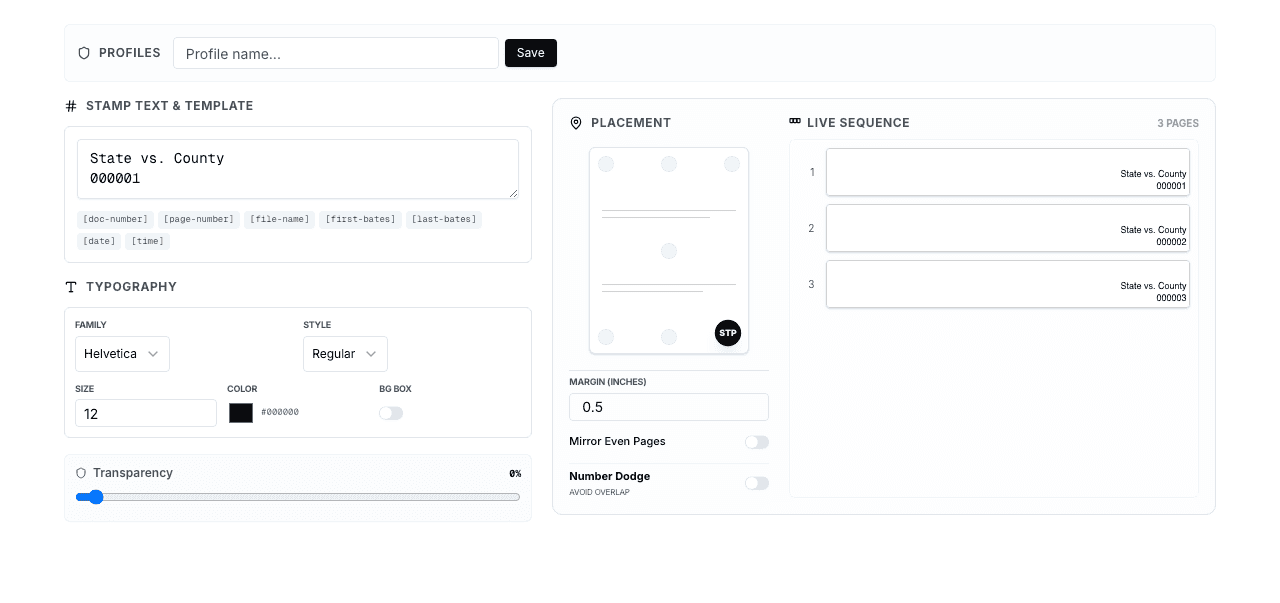
The first step is to configure how your Bates numbers will appear on your documents.
1.1 Set Your Starting Number
In the Stamp Config tab, enter your starting Bates number in the "Starting Number" field. Common formats include:
000001- Simple 6-digit formatABC000001- With case prefixSMITH-2026-0001- With party name and yearDOC-000001-CONF- With document type and suffix
💡 Pro Tip
Use enough leading zeros to accommodate your entire document set. If you expect 10,000+ pages, use 6 digits (000001). The number of zeros determines the padding.
1.2 Customize Stamp Text
The "Stamp Text Template" field lets you customize what appears on each page. You can use template variables:
[bates-number]- The current Bates number[file-name]- Original filename[page-number]- Page number within document[doc-number]- Document index in batch
Example: CONFIDENTIAL - [bates-number] will produce stamps like "CONFIDENTIAL - ABC000001"
1.3 Choose Font and Appearance
Select your preferred font family (Helvetica, Times, Courier), style (Regular, Bold, Italic), size, and color. Most legal documents use:
- Font: Helvetica Bold or Times Roman
- Size: 10-12 points
- Color: Black (#000000) or dark gray
1.4 Select Position
Click on the page preview to choose where Bates numbers appear. Common positions:
- Bottom Right: Most common for legal documents
- Bottom Center: Alternative standard position
- Top Right: Used when bottom contains other stamps
Enable "Alternate Sides" to mirror left/right positions on even pages, useful for double-sided printing.
Step 2: Add Your Documents
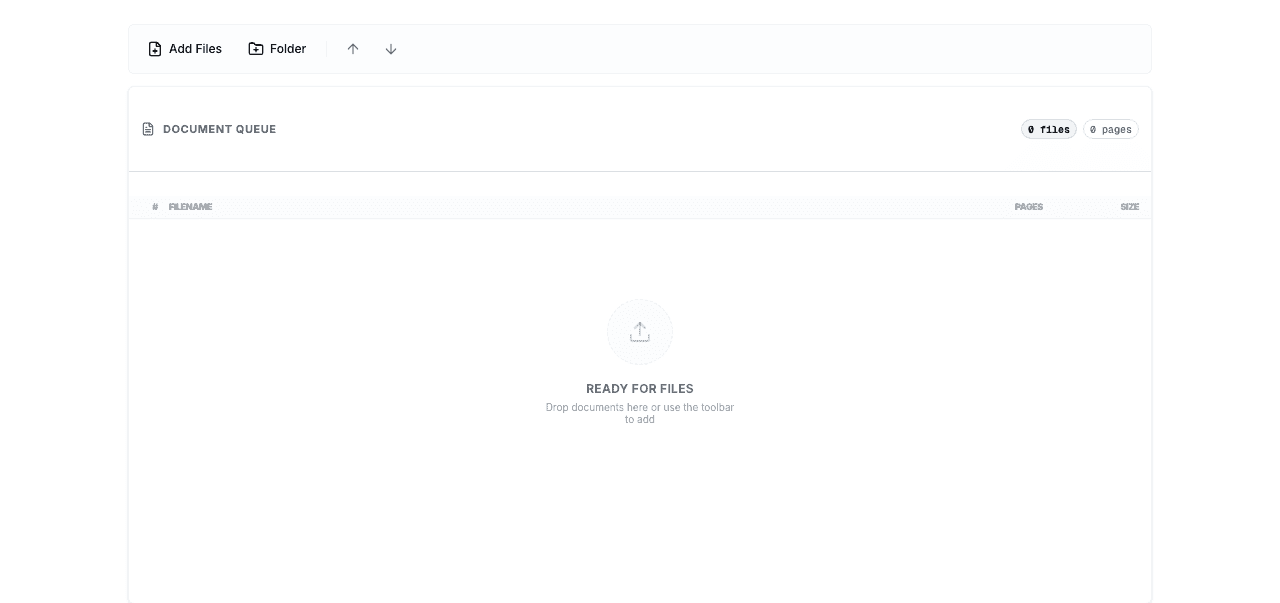
Navigate to the Documents tab to add files for Bates numbering.
2.1 Upload Files
You can add documents in three ways:
- Click "Add Documents": Opens file browser to select PDFs
- Drag and Drop: Drag files directly onto the upload area
- Batch Upload: Select multiple files at once (Ctrl/Cmd + Click)
BatesFast supports PDF files and common image formats (JPG, PNG, TIFF) which are automatically converted to PDF.
2.2 Organize Document Order
Documents are numbered in the order they appear in the list. You can:
- Drag documents to reorder them
- Remove documents you don't want to number
- Add more documents at any time
📋 Organization Tip
Organize documents chronologically or by document type before uploading. This ensures logical Bates number sequences that make sense during discovery.
2.3 Review Document Information
The document list shows each file's name, page count, and size. Verify this information before processing to ensure all documents are correct.
Step 3: Configure File Naming (Optional)
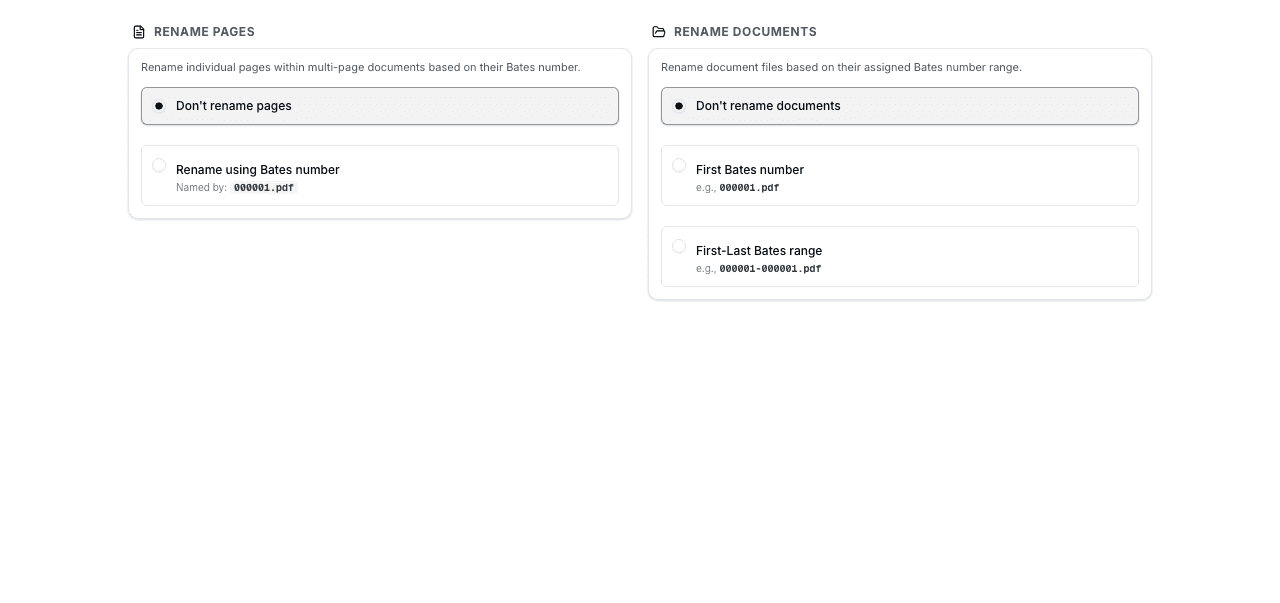
The Rename tab lets you automatically rename output files using Bates numbers.
3.1 Document Naming Options
Choose how to name your output files:
- Keep Original: Maintains original filenames
- First Bates: Names file with its first Bates number (e.g., "ABC000001.pdf")
- Bates Range: Uses first and last Bates numbers (e.g., "ABC000001-ABC000025.pdf")
3.2 Page Naming for Labels
If generating Avery labels, you can name each page with its Bates number for easy physical document organization.
Step 4: Process and Download
The Run tab processes your documents and provides download options.
4.1 Start Processing
Click the "Run Bates Numbering" button to begin processing. BatesFast will:
- Apply Bates numbers to each page
- Rename files according to your settings
- Generate labels if configured
- Show real-time progress
Processing happens entirely in your browser - your documents never leave your computer. Most batches complete in seconds.
4.2 Download Options
After processing completes, you can:
- Download All as ZIP: Get all stamped PDFs in a single archive
- Download Individual Files: Download specific documents one at a time
- Download Labels: Get Avery label sheets if generated
4.3 Review Results
The results panel shows statistics including documents processed, total pages stamped, and the final Bates number. Review this information to ensure everything processed correctly.
Pro Tips and Best Practices
Maintain Consistent Formatting
Use the same Bates number format throughout your case. Save your configuration settings and reuse them for consistency across all productions.
Keep Originals
Always preserve copies of original, un-numbered documents. You may need to re-number or produce documents in native format later.
Document Your Process
Maintain a log of Bates ranges, production dates, and any special handling. This creates an audit trail for your document production.
Test First
Before processing large batches, test with a few sample documents to verify your settings produce the desired results.
Use Descriptive Prefixes
Include case names, party identifiers, or document types in your Bates prefix. This makes documents self-identifying and easier to organize.
Troubleshooting Common Issues
Numbers Not Visible
If Bates numbers don't appear on your PDFs, check that the font color contrasts with the page background. Try black text on light pages or white text on dark pages. Also verify the font size is large enough (10-12pt minimum).
Numbers Overlap Content
Enable "Avoid Overlap" in advanced settings to automatically detect and avoid existing page content. Alternatively, adjust the margin setting to move stamps further from the edge.
Wrong Number Sequence
Verify documents are in the correct order in the Documents tab. Drag to reorder if needed. Also check that your starting number is correct and doesn't skip values.
Processing Takes Too Long
BatesFast processes documents very quickly, but extremely large files (100+ MB) may take longer. Consider splitting very large PDFs into smaller chunks for faster processing.
Frequently Asked Questions
Can I add Bates numbers to scanned documents?
Yes. BatesFast works with any PDF, including scanned documents. You can also upload image files (JPG, PNG, TIFF) which are automatically converted to PDF before stamping.
Is there a limit on file size or number of documents?
No. BatesFast has no limits on file size, number of documents, or total pages. Your one-time $299 purchase gives you unlimited processing forever.
Are my documents uploaded to a server?
No. BatesFast uses client-side processing, meaning all work happens in your browser. Your documents never leave your computer, ensuring complete privacy and security.
Can I continue numbering from a previous batch?
Yes. Simply set your starting number to the next number after your previous batch. For example, if your last batch ended at ABC000500, start the next batch at ABC000501.
What if I make a mistake?
Since BatesFast doesn't modify your original files, you can always start over. Simply re-upload your original documents and process them again with corrected settings.
Conclusion
Adding Bates numbers to PDF documents is straightforward with BatesFast. The four-step process - configure, upload, rename, and process - takes just minutes and produces professional results.
Whether you're preparing discovery documents, organizing case files, or managing any large document set, BatesFast provides a fast, secure, and affordable solution for all your Bates numbering needs — one-time purchase, no subscription.
Ready to Start Bates Numbering?
Try BatesFast now — secure, fast, and no subscription required. Start with one free preview run, then $299 one-time purchase.
Try BatesFast Now