Exhibit Labels for PDFs: Mark Documents and Keep Bates References
An exhibit label identifies a document. A Bates number identifies a page. Use both when your workflow needs a recognizable exhibit name and a precise reference inside a longer document.
Searching for exhibit labels or exhibit stickers can lead to two different tasks: marking paper originals and marking electronic PDFs. This guide covers a PDF workflow in BatesFast. It adds plain text labels such as Exhibit A above your Bates stamp without printing, attaching a physical sticker, and rescanning the document.
Electronic marking is an established workflow: the District of Utah publishes a PDF exhibit-stamp tool for numbered or lettered labels in Acrobat. That example does not make one label style suitable for every filing. Confirm the naming, placement, and any prescribed sticker format for your own matter before preparing the final copies.
Choose the exhibit convention first
Some teams identify documents with letters; others require numbers or party-specific wording. BatesFast's automatic exhibit labels use Exhibit A, Exhibit B, Exhibit C… in queue order, continuing after Z as AA, AB, and onward. Each input document receives one exhibit letter, retained on its stamped pages.
The automatic letter sequence begins at A for each queue. It does not provide a separate exhibit starting value, numeric exhibit sequence, or custom exhibit-prefix control. Use a suitable PDF editor when your instructions require those formats or a court-specific graphic sticker.
A fictional three-exhibit packet
Imagine three prepared PDFs: a four-page agreement, a three-page email printout, and a two-page inspection report. They will be reviewed as one nine-page packet starting at DEMO-000101. With the default Exhibit A letter sequence and Every page enabled:
| Document | Exhibit label | Pages | Bates range |
|---|---|---|---|
| Agreement.pdf | Exhibit A | 4 | DEMO-000101–DEMO-000104 |
| Email printout.pdf | Exhibit B | 3 | DEMO-000105–DEMO-000107 |
| Inspection report.pdf | Exhibit C | 2 | DEMO-000108–DEMO-000109 |
The third page of the agreement is still Exhibit A, with Bates reference DEMO-000103. The exhibit label tells the reader which document to open; the page number tells them where to look. Reordering the documents before stamping changes both the automatic letters and their assigned Bates ranges.
Prepare one file for each intended exhibit
Keep the source copies. Finish page edits, rotation, redaction, and OCR separately before adding files. BatesFast accepts PDFs, JPEGs, PNGs, and TIFFs. Images become Letter-size PDFs; multipage TIFFs are supported. It does not convert Word files, email archives, or spreadsheets.
Keep each intended exhibit together as one input document. The app labels each file, not a document boundary inferred from its contents. If an exhibit consists of several PDFs, combine them in a PDF editor first. If one PDF contains several intended exhibits, split it before adding it.
Enable labels and inspect the page preview
Open Text in the stamp settings and turn on Exhibit labels. The automatic letter label appears above the stamp text. In Number, set your Bates prefix and starting value; leading zeros set the number width. Inspect the production plan to confirm the exhibit assigned to every file. Its Stamp exhibit labels switch also turns the labels on or off.
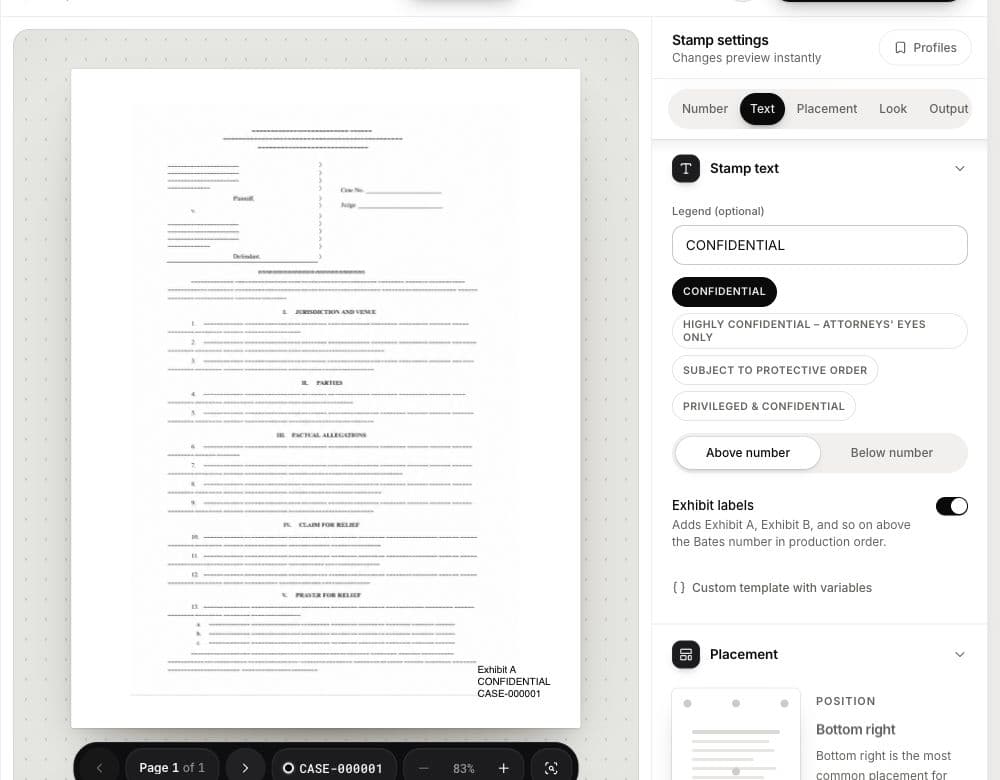
Choose a readable font, size, and margin. Check pages with signatures, dense footers, landscape orientation, and existing numbering. Adding three lines needs more clear space than a single Bates number. An optional confidentiality legend should reflect instructions for that document; selecting a preset does not perform a legal review.
First-page labels or labels on every page?
The Output stamp mode controls Bates numbering: Every page advances it on each page; First page stamps only the first page and issues one Bates number per document. In the fictional packet, First page produces A/DEMO-000101, B/DEMO-000102, and C/DEMO-000103, with the remaining pages unstamped.
The exhibit label follows the same stamp mode as the Bates number. Every page repeats both on all pages; there is no independent first-page-only exhibit setting while Bates numbering continues on every page. With Skip cover mode, the first stamped page of a multipage PDF is its second physical page. Use a separate labeling workflow when the exhibit mark and page numbers need different page scopes.
Save the labeled files and a reference list
Run and download the PDFs, then export the document list with Bates ranges. That CSV retains original and output filenames, page counts, and first/last Bates identifiers. The CSV and JSON exports do not include a separate exhibit-label field. Keep your own exhibit-to-document reference list and check it against the production plan and downloaded files.
Open the downloaded files to confirm that the first and last pages match your list. See the production index guide for export details and Bates filename guide for delivery names. For paper marking, use the Avery-compatible Bates label workflow; its printable sheets do not automatically carry the PDF Exhibit A sequence.
Preview exhibit labels on three sample documents. You can explore placement before running; one complete free processing run is available after Google sign-in, and later runs require a license.