PDF Guide
Split a PDF into Individual Pages Named by Bates Number
Stamp and split a PDF into one file per page, keep filenames tied to Bates identifiers, and reconcile the output with a page-level CSV index.
By BatesFast · · 5 min read
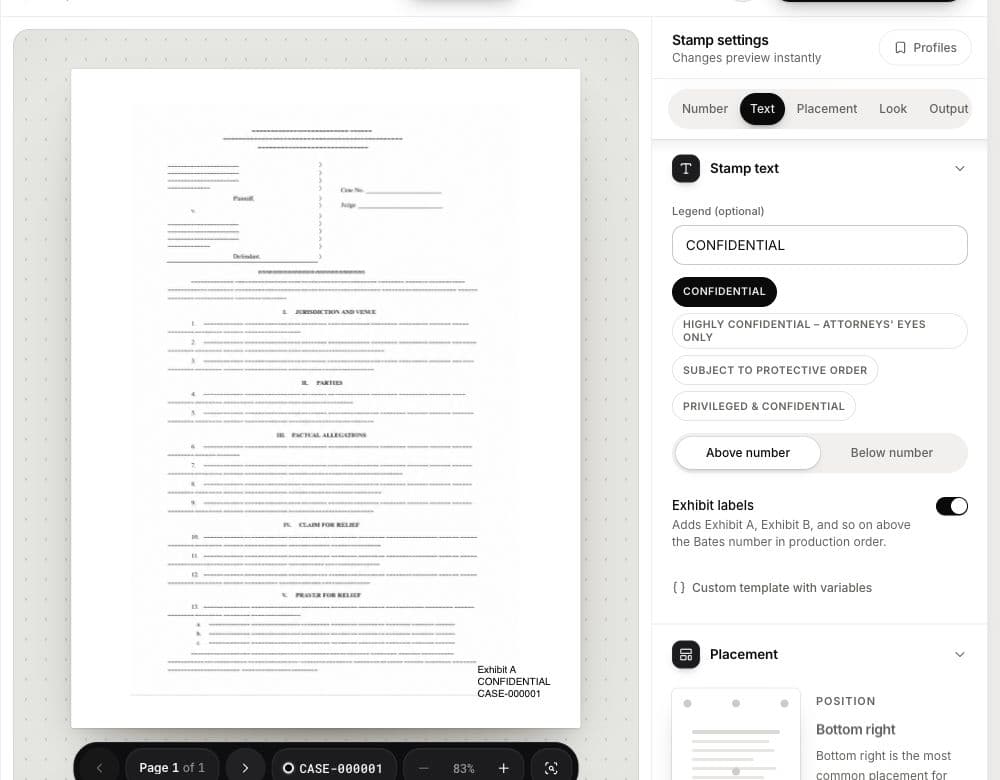
When a recipient needs one PDF per page with a unique filename, BatesFast can stamp the production and export separate page PDFs named by their Bates identifiers. This connects the visible stamp, filename and page-level index. It is a specific numbered delivery workflow; check that the recipient wants separate PDFs before splitting a document.
When one file per page is useful
Page files can help with a review workflow that references individual pages, an inspection-photo packet, or a delivery specification that explicitly requests them. Keeping multipage documents together is often more convenient for reading. Use the form that the recipient can actually work with.
In a legal production, one-page PDFs do not automatically meet an ESI protocol. A protocol may require native files, searchable text, image formats, family relationships or platform-specific load files. BatesFast does not export TIFF productions, DAT/OPT load files or extracted metadata. Confirm those requirements before choosing a PDF-only workflow.
Prepare the final documents before splitting
Keep the source PDFs. Finish redaction, page edits and rotation in an appropriate editor first. Bates stamping does not redact material or perform OCR. Add the finalized PDFs to BatesFast, then review the file order and page totals.
JPEG, PNG and TIFF inputs are also supported, including multipage TIFF. Their pages become Letter-sized PDFs during processing. Source PDFs keep their page geometry, so inspect both portrait and landscape examples. If original photograph files or original dimensions are required, keep and deliver those separately under the agreed workflow.
Set the numbers and export option
- Choose a unique prefix and starting number, such as
DEMO-000101. - Choose the standard Bates stamp and Every page placement mode for a fully numbered page set.
- Inspect the preview on representative pages so the stamp is readable without covering source content.
- Enable One PDF per page in the output settings.
- Run the production, download the output ZIP and export the Bates index CSV.
First-page-only or skip-cover settings leave some pages without a stamp. Those pages use fallback page-based filenames rather than promising a visible Bates identifier on every output file. If your delivery calls for one identified file per page, use Every page and check the results.
Worked example: three documents, seven page files
A fictional batch contains a three-page report, a two-page invoice and a two-page photo packet. Starting at DEMO-000101, it ends at DEMO-000107. With every page stamped and splitting enabled, the expected delivery contains seven PDFs, named DEMO-000101.pdf through DEMO-000107.pdf.
| Source | Pages | Output identifiers |
|---|---|---|
| Report.pdf | 3 | DEMO-000101–000103 |
| Invoice.pdf | 2 | DEMO-000104–000105 |
| Photos.pdf | 2 | DEMO-000106–000107 |
The Bates index provides the source document, original page, Bates identifier and output filename for each page. The document list gives the first and last numbers for each source. Keep both if the recipient needs to reconstruct document boundaries; splitting alone does not convey those relationships.
Check the downloaded set
- Extract the ZIP and count the PDF files against the expected page total.
- Open the first and last page files and check the visible identifiers against their names.
- Inspect a page from each source, including any landscape or image input.
- Compare the CSV rows with the actual filenames and source-page mapping.
- Record the last issued number and preserve the original multipage documents.
Do not treat a successful download as proof that the entire production meets the recipient’s specification. Inspect the saved files outside the app and confirm their import workflow. Adobe also documents page extraction for workflows where you only need to extract pages without Bates stamping.
Continue the same sequence later
If the seven-page example has been delivered, the next continuous batch begins at DEMO-000108. Confirm this against your own production record rather than a remembered setting. The supplemental production guide explains how to check the handoff between batches.
Inspect the workflow with sample exhibits. Google sign-in is required to run a production. One complete production is free, with downloads available for seven days; further runs require a license. See Bates filenames for document-level naming choices.