Batch Bates Numbering: Keep Ranges Continuous Across PDFs
Plan continuous Bates ranges across multiple PDFs, preserve file order, and check your output against an index before delivery.
Batch Bates numbering gives every page in an ordered set of documents its own identifier. Keep the number sequence continuous across files while preserving the file boundaries. The next document starts one number after the previous document ends.
The work is easier to check when you decide the order and expected ranges before stamping. This walkthrough uses fictional exhibits with 4, 7, and 4 pages: 15 pages in total.
Plan the whole range before running the batch
Choose one prefix for the intended sequence, confirm the last number already issued, and count the final pages. Starting at 101 with 15 pages gives an ending number of 115. Starting the second file at 101 again would create duplicate identifiers.
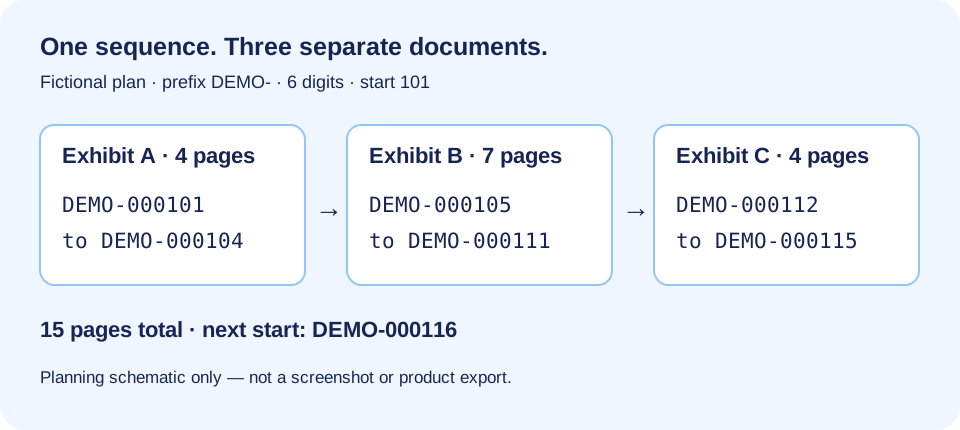
| Order | Fictional source | Pages | First Bates | Last Bates |
|---|---|---|---|---|
| 1 | Exhibit-A.pdf | 4 | DEMO-000101 | DEMO-000104 |
| 2 | Exhibit-B.pdf | 7 | DEMO-000105 | DEMO-000111 |
| 3 | Exhibit-C.pdf | 4 | DEMO-000112 | DEMO-000115 |
Use the page counter for PDF totals and the range calculator for the end number. Count after content preparation: adding or removing a page changes every later number.
Arrange the documents, then check the settings
- Keep original files in a separate source folder. Finish redactions, rotations, and content corrections first.
- Add the final files to BatesFast. Review the actual list order rather than assuming it follows your operating system’s sort.
- Use prefix DEMO-, six digits, and start 101 for this fictional plan. Check that the numbering continues across the files.
- Preview placement on different page sizes and orientations. Confirm the stamp does not cover existing content.
- Choose output filenames and run the batch. Download the results, the document list with ranges, and the per-page Bates index.
For the settings in detail, use the first-production tutorial. Processing time and practical batch size depend on page complexity, file size, and available device memory. Try a representative fictional set before scheduling a large production.
Reconcile the files with the index
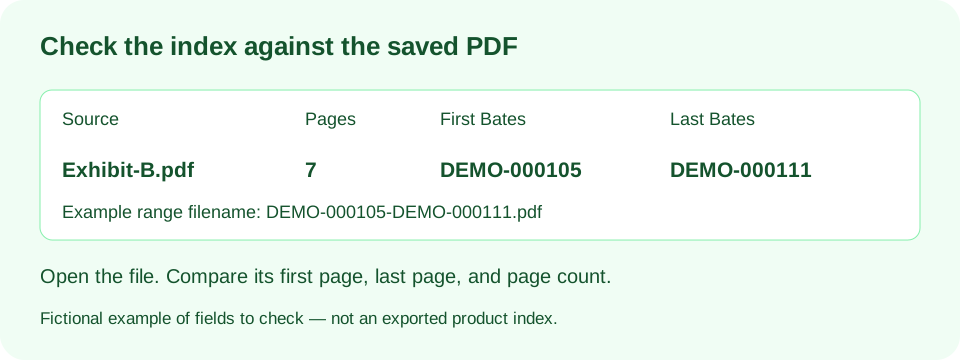
Use the document list with ranges to check each output file. Compare its page count, first stamp, and last stamp with your expected range. Across the full set, the page total must equal 15 and the final identifier must be DEMO-000115. The index and filenames should agree with the pages themselves.
A CSV index can help you review and hand off the production. It does not establish that a particular eDiscovery platform will accept it as a load file. Check the recipient’s required field names, encoding, and delivery format separately.
If you need more than one run
Split at a document boundary when practical. After verifying the first run, record its last issued number, and start the next at that number plus one. In this example, a subsequent batch in the same sequence starts at 116. Preserve the prefix and digit format too.
If a run fails, identify which outputs are complete before continuing. Do not assume that a downloaded file or an on-screen progress count means the entire batch succeeded. Reconcile the set and avoid mixing unverified partial output with the final delivery.
Save the production independently of the browser
Keep the checked PDFs, index, source-to-output mapping, and sequence record in your organization’s approved storage. BatesFast can recover the last production locally, but browser storage is not an archive and may be cleared or evicted. The seven-day free download permission does not mean local data is erased after seven days. See local storage and privacy details.
One complete production is free after Google sign-in. Repeat productions use the $199 lifetime per-device license. If Acrobat is already part of your workflow, the Acrobat comparison explains the tradeoffs.
Try the workflow on sample exhibits
The built-in sample loads three one-page images. It is separate from the fictional 15-page example in this guide. Google sign-in is required to stamp. You get one complete free production with downloads available for seven days; further productions require a license.
Try these settings on sample exhibitsWatch the walkthrough
All video tutorialsBatch Bates Numbering: Continuous Ranges Across Multiple PDFs
Batch Bates numbering is most useful when the sequence continues across separate PDFs. In this fictional example, one document has three pages and another has two. Starting at DEF-000501, the complete production should use five numbers through DEF-000505.
Bates Stamping Software: PDFs, JPG, PNG, and TIFF in One Batch
A document production can contain PDFs alongside scanned images. BatesFast accepts PDF, JPG, JPEG, PNG, TIF, and TIFF inputs. This walkthrough uses fictional files to show how a mixed batch can share one numbering sequence while each source remains a separate document.
Bates Numbering Best Practices: Export a Page-by-Page CSV Index
A stamped PDF tells you the page number. A Bates index tells you which source document and page that number belongs to. This tutorial shows how to export and read that index in BatesFast using sample documents.
Bates Stamping Software: Document Lists and Production Reports Explained
BatesFast offers three different production records. The page index answers which page has this number. The document list summarizes ranges by file. The production report records settings and totals. Here is how to use each for a final review.
Batch Bates Numbering: A Browser Workflow for Document Sets
This earlier BatesFast walkthrough covers batch selection, numbering format, placement, preview, and export for a document set. Use a representative sample to confirm page counts, sequence boundaries, and output filenames. Processing time depends on the files and device; this video is not a verified throughput benchmark.