Adobe Acrobat vs BatesFast for Bates Numbering
Compare Bates numbering, filename options, local processing, and per-device pricing. Decide whether to keep Acrobat or try BatesFast.
Both Adobe Acrobat Pro and BatesFast can add sequential Bates numbers across a set of PDFs. Both offer Bates-based filenames. The useful choice is whether you need Acrobat’s wider PDF toolset or a dedicated browser workflow for repeat productions.
If your firm already licenses Acrobat Pro and its Bates workflow works for you, keeping it may be the simplest option. Consider BatesFast when you want local browser stamping, range filenames, index exports, and a one-time per-device license.
What each tool offers
| Task | Acrobat Pro | BatesFast |
|---|---|---|
| Number a set of PDFs | Desktop Bates numbering with file ordering and number-format settings | Browser stamping with continuous numbering and format settings |
| Name files with Bates numbers | Supported through Output Options | First-number and range naming options |
| Prepare PDFs before stamping | Broader PDF editing, OCR, and redaction tools | Focused stamping workflow; prepare content and redactions before adding files |
| Review the production | Check stamped files and available output options | Check stamped files and export a production index |
| License decision | Check your existing entitlement and current regional plan | $299 lifetime per device, excluding tax |
Adobe documents how to add Bates numbers to filenames. Renaming is therefore not an exclusive BatesFast feature. Our step-by-step Adobe Acrobat Pro guide walks through the current Bates numbering workflow; interface wording can vary by version.
Compare the cost you would actually add
BatesFast costs $299 once for each device license. Five full-price licenses cost $1,495 before tax. For ten or more licenses, use the volume quote offered on the pricing page rather than assuming a discount. The listed refund window is 14 days; review the refund policy before purchase.
Check Adobe’s current pricing for your country, commitment, and team. If Acrobat is already paid for and still needed for other work, buying BatesFast adds a cost. There is no universal break-even date.
Local processing does not mean no stored data
BatesFast stamps document content locally in the browser. Its account, payment, and analytics services still use network connections. The last finished production and recoverable originals can remain in local browser storage after closing the tab. Optional saved history is also stored locally. Read the privacy and retention explanation, especially before using a shared computer.
Assess Acrobat against your organization’s desktop and cloud-feature settings. Neither installation nor running in a browser proves that one tool is more secure. Review the actual workflow, device controls, and policies your team requires.
Test the same production in both tools
Use fictional files before trying a new workflow on a matter. Keep the source order, page count, prefix, starting number, and placement identical. In the example below, start at 101, use six digits, and add the prefix DEMO-. Confirm the same first and last identifier in each document.
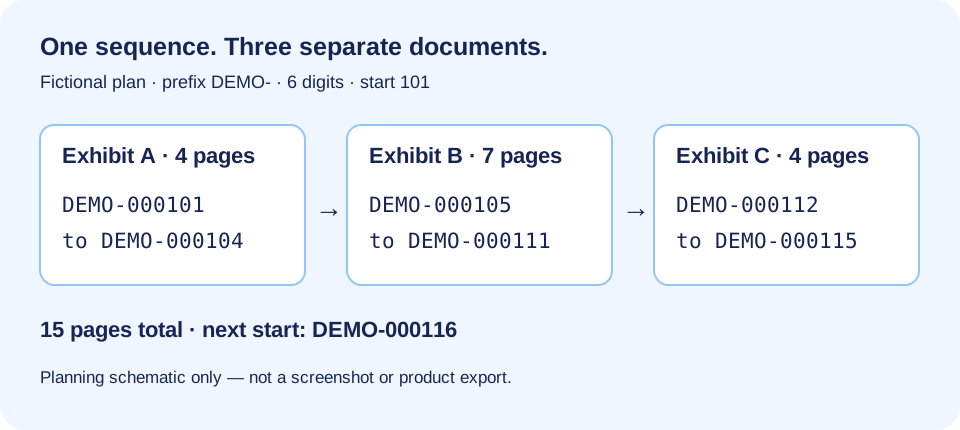
Open the downloaded PDFs and check a portrait page, a landscape page, and a page with content near the stamp. Compare filenames and your index with the actual output. If speed matters, time your own representative batch on the same device; this article does not claim a measured speed advantage for either product.
When to keep Acrobat, and when to try BatesFast
Keep Acrobat in the workflow when your team relies on its editing, OCR, redaction, or other PDF features. Try BatesFast when recurring stamping and production organization are the job you need to solve. You can prepare PDFs in one application and number final copies in another, provided you verify the resulting files.
The step-by-step Bates numbering guide covers a first run. For a larger set, use the batch workflow to plan continuity and reconcile the index.
Try the workflow on sample exhibits
The built-in sample loads three one-page images. It is separate from the fictional 15-page example in this guide. Google sign-in is required to stamp. You get one complete free production with downloads available for seven days; further productions require a license.
Try these settings on sample exhibits