How to Bates Number in Adobe Acrobat Pro
BatesFast keeps your file order, live stamp preview, exhibit labels, and Bates ranges together in one browser workspace. Adobe's built-in Bates numbering requires Acrobat Pro; the free Acrobat Reader and Acrobat Standard do not include it. If you have Pro, start at Edit → More → Bates numbering → Add. The full steps are below.
One full production after Google sign-in. Your PDFs stay on your device.
A Bates workflow built for the production itself
BatesFast puts the steps you repeat for a document set in one place. Add PDFs or images, set the sequence, inspect the page preview, review the ranges, and download the numbered output.
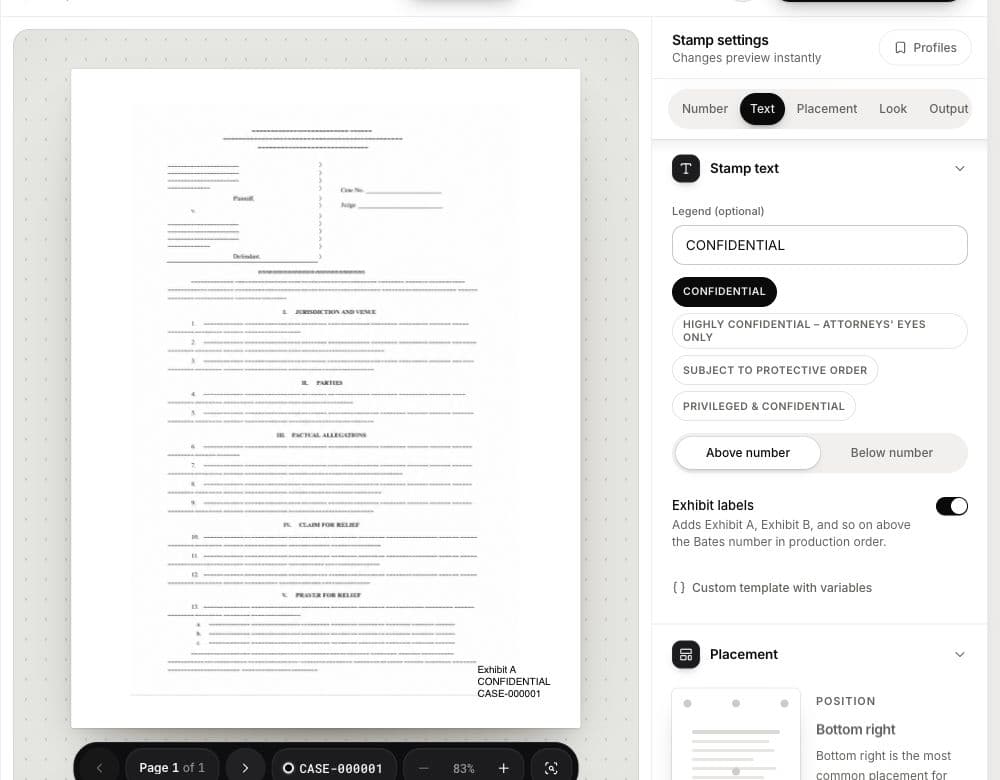
See the stamp as you set it
Change the prefix, starting number, legend, or placement and see the page preview update before running the batch.
Pick a legal legend in one click
Choose Confidential, Attorneys' Eyes Only, or Protective Order wording. Save your own named stamp profiles to reuse.
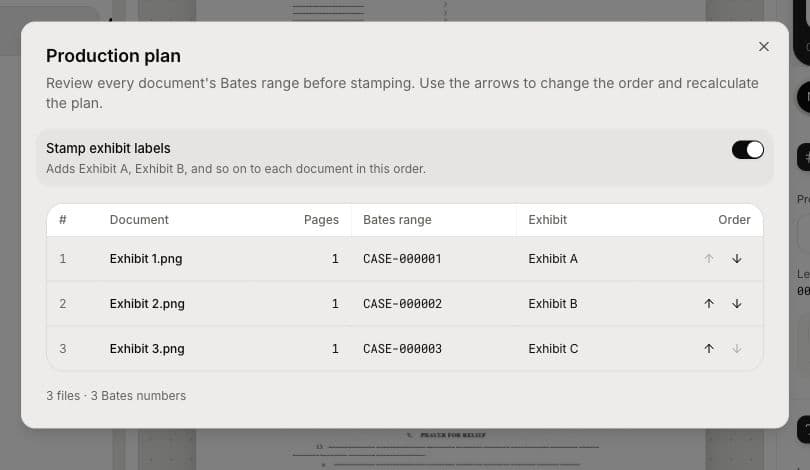
Plan the whole set first
See each document's Bates range and optional Exhibit A, B, C label. Reorder files and watch the plan recalculate.
Take the finished files with you
Number continuously across the batch, then download the stamped PDFs individually or as a ZIP. Export a separate Bates index when you need one.
Know the Bates ranges before you stamp
A 50-page first document starting at 0001 should end at 0050; the next document should begin at 0051. BatesFast shows that handoff in a production plan before the run. Turn on exhibit labels and the same order determines Exhibit A, B, C, and beyond.
From files to a reviewed ZIP
- Add your PDFs or images. Put the documents in the order you want produced.
- Set the stamp once. Choose a prefix and number, pick a legend if needed, and check the live preview.
- Review, stamp, download. Check the range plan, run the batch, and download the PDFs or a ZIP.
The source documents are processed in your browser and are not uploaded for stamping. BatesFast focuses on numbering and production checks; keep using Acrobat for editing, OCR, or redaction when you need those broader PDF tools.
How to Bates number in Adobe Acrobat Pro
In Acrobat Pro, the feature is called Bates numbering. If you searched for “bate stamp Adobe,” this is the tool you mean. The short path is:
- Open a PDF and choose Edit → More → Bates numbering → Add.
- Add the PDFs, put them in production order, and choose the output options.
- Insert the Bates number in a header or footer position, set the starting number, digit count, and optional prefix, then apply it.
Acrobat handles the numbering. For a repeat legal production, you still need to check the file order, stamp placement, and the first and last number in each output file. Adobe's Acrobat Pro instructions cover the full dialog-by-dialog process.
Common questions
Can Acrobat number multiple PDFs continuously?
Yes. Add the PDFs to the same Bates numbering job and set their order. Check the numbers at each file boundary after processing.
Can Acrobat put Bates numbers in filenames?
Yes. Acrobat has output naming options, and Adobe documents how to add Bates numbers to filenames.
Is a BatesFast batch free?
Your first full production is free after Google sign-in. Continued use is a one-time $299 purchase per device, excluding tax.
Ready to stamp this production?
Bring the document set, choose a legal stamp, check every range, and download your finished PDFs. Your files stay on your device.
Try one full production free