How to Edit or Remove Bates Numbering in Adobe Acrobat
Adobe Acrobat Pro does not let you edit a Bates number once it is applied. To fix a wrong prefix, start number or position, remove the Bates numbering with Edit → More → Bates numbering → Remove, save, and add it again with the right settings. The steps below cover single files, whole batches, and the cases where Remove finds nothing.
Bates numbering is an Acrobat Pro feature. Acrobat Standard and the free Acrobat Reader do not include it, so they cannot add, remove or re-apply Bates numbers either. Menu names below follow the current Acrobat Pro layout; older versions place the same commands under Tools → Edit PDF → More → Bates Numbering.
Why Acrobat has no “edit Bates numbering” command
Acrobat writes the Bates number into each page as a header or footer element that it tags as Bates content. The Bates numbering menu offers two actions on that content: Add and Remove. There is no update or edit action, which is why searching the menus for one comes up empty.
In practice, “editing” always means one of two things:
- Remove and re-apply. Strip the existing numbers from the stamped files, then run Add again with corrected settings.
- Start again from the unstamped originals. If you kept the source PDFs, number those instead. This is cleaner, avoids layering a new stamp over a partly removed one, and is the only option when Remove cannot find the old numbers.
Whichever route you take, treat the result as a new run and check it again. A corrected start number shifts every number after it, so ranges you wrote down earlier may no longer match.
How to remove Bates numbering from one PDF
- Open the Bates-numbered PDF in Acrobat Pro.
- Choose Edit in the toolbar, then More → Bates numbering → Remove.
- Confirm the prompt. Acrobat removes the Bates numbers it recognizes from every page of the open document.
- Save the file. Use Save As with a new name if you want to keep the stamped version for reference.
Remove clears the Bates numbering only. Ordinary headers and footers, comments and stamp annotations are separate features with their own commands, so check the pages afterwards for anything else that was added at the same time.
How to remove Bates numbering from many PDFs
The Remove command works on the document that is open. For a whole production you have two practical choices:
- Repeat per file. Fine for a handful of documents. Open, remove, save, close.
- Use the Action Wizard. Acrobat Pro can run a saved action on a folder of files. Create a custom action that removes Bates numbering and then saves, and run it on a copy of the folder. Command names in the Action Wizard vary between Acrobat versions, so test the action on two or three files before running the full set.
Work on copies. If anything goes wrong halfway through a batch, you still have the original stamped set and can start over.
Re-apply Bates numbers with the correct settings
Once the old numbers are gone, add the new ones. This is also how you Bates stamp multiple files in Adobe in one run:
- Choose Edit → More → Bates numbering → Add.
- Use Add Files to include every PDF for the production, then move them into production order. Acrobat continues the sequence from the last page of one file to the first page of the next in the order shown.
- Open Output Options to choose where the numbered files are saved and how they are named.
- In the header and footer dialog, click the position box you want, then Insert Bates Number. Set the number of digits, the start number, and any prefix or suffix.
- Use the page preview to check the first page, then apply.
Before you apply, work out what the last number should be. A set that starts at 1 and has 1,240 pages ends at 1,240; if it starts at 501 it ends at 1,740. The Bates range calculator does that arithmetic per document, and the PDF page counter gives you the page totals without opening every file. Adobe's own Bates numbering help walks through each dialog field.
Common Bates mistakes and the fix for each
| Problem | What to do |
|---|---|
| Wrong start number | Remove, then re-apply with the correct start. Every later number changes, so re-check all ranges. |
| Wrong prefix or digit count | Remove and re-apply. Use the same digit count across a production so numbers sort correctly. |
| Files numbered in the wrong order | Remove from all affected files, reorder them in the Add Files list, and run Add again across the whole set. |
| Number covers text or a signature line | Move it to another position, raise the margin, or use the dialog's appearance option to shrink the page content so the stamp does not overlap it. |
| Next batch must continue the sequence | No removal needed. Start the new run at the last delivered number plus one. See continuing Bates numbering in a supplemental production. |
If numbers have already been delivered to another party, a silent correction can cause confusion. Coordinate with the people managing the matter and keep a record of which files replaced which.
When Acrobat says there is no Bates numbering to remove
Acrobat only finds Bates numbers it recognizes as its own Bates content. The Remove command reports nothing to remove when:
- Another tool added the numbers. Many stamping tools write ordinary text that Acrobat does not treat as Bates numbering.
- The file was flattened, printed to PDF, or optimized in a way that merged the numbers into the page content.
- The pages are scans of stamped paper. The number is part of the image, like any other ink on the page.
Your options then are to go back to the unstamped source files, or to cover the old number with Acrobat's Redact tool. Redaction permanently removes content and leaves a visible box by default, so it is a last resort for a production that has to look clean. This is the strongest argument for keeping an untouched copy of every source document before stamping.
Change Bates settings without a remove-and-redo cycle
BatesFast approaches corrections differently because it never overwrites your files. You add PDFs or images, set the prefix, start number and placement, and see the stamp on the actual page before anything is written. The production plan lists every document's first and last Bates number, so a wrong start or a misordered file shows up before the run, not after.
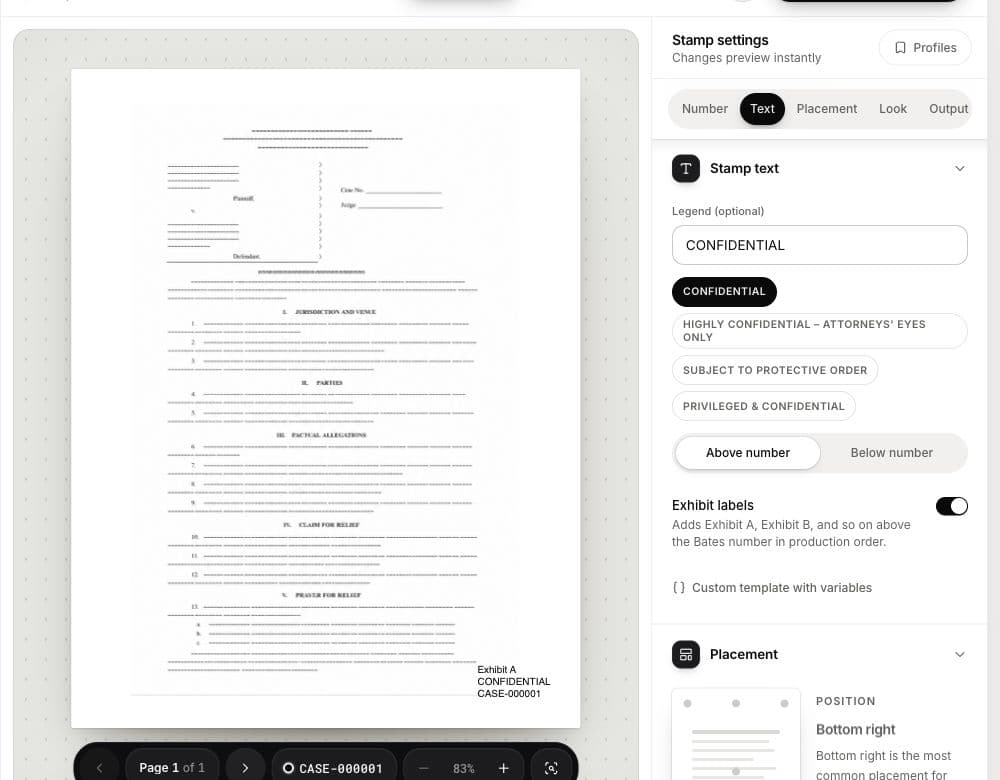
If a run turns out wrong, your source files on disk are unchanged. Change the setting and run the batch again to produce a new, corrected set. For PDFs that already carry a Bates stamp, open the document's menu in the library and choose Remove Bates stamps. It looks for a separate Bates stamp layer, including BatesFast's own stamps and Bates content tagged the way Acrobat tags it, and replaces the workspace copy with a cleaned version. As in Acrobat, a number that is part of a scanned image or flattened page cannot be lifted off; BatesFast tells you when it finds nothing to remove.
Processing happens in your browser, so the documents are not uploaded for stamping. Your first full production is free after Google sign-in; continued use is a one-time $199 license per device, excluding tax. For a side-by-side view of the two workflows, see Adobe Acrobat vs BatesFast.
Open the BatesFast workspace and check a production plan before you stamp.
Frequently asked questions
Can you edit Bates numbers after applying them in Adobe Acrobat?
No. Acrobat Pro has Add and Remove commands for Bates numbering but no command that edits an applied number. To change the prefix, start number, digits, position or font, remove the Bates numbering and add it again with the corrected settings.
How do I remove Bates numbering in Adobe Acrobat Pro?
Open the PDF, choose Edit, then More → Bates numbering → Remove, confirm, and save the file. In older Acrobat layouts the same command is under Tools → Edit PDF → More → Bates Numbering → Remove.
Why does Acrobat say there is no Bates numbering in my PDF?
Acrobat can only remove Bates numbers it recognizes as its own Bates content. Numbers added by other software, flattened into the page, or printed and scanned are ordinary page content, so the Remove command does not find them.
How do I Bates stamp multiple files in Adobe Acrobat?
In the Add Bates Numbering dialog, use Add Files to include every PDF, arrange them in production order, choose the output location and file naming, then set the Bates format. Acrobat continues the sequence from one file to the next in the order shown.